
Table of Contents
- Overview
- Before you start
- Open the Invoice List report
- Understand what you see
- Filter and sort your invoices
- Download invoices
- Export the report
- Tips
- FAQs
Overview
You can now find, review, and download your invoices yourself, whenever you need them. Everything lives in one place in Connects, the Inspirus platform you use to run your recognition program.
The Invoice List report gives you a clear view of your invoices from the past 24 months. You can see what each invoice is for, whether it has been paid, and when it is due. You can download one invoice PDF at a time or several at once and save the full list as a spreadsheet for your records.
The report lives on your Reports page, in a section called Billing.
Before you start
- Who can use this report: Administrators and Reporting Analysts
Open the Invoice List report
- Go to Reports.
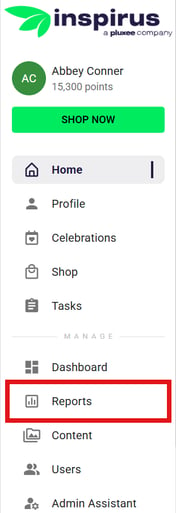
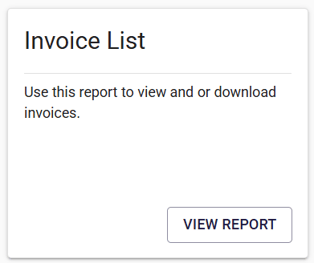
- Find the Billing section and locate the Invoice List card.
- Click VIEW REPORT on the Invoice List card.
The report opens and shows all of your invoices for the current year to date.
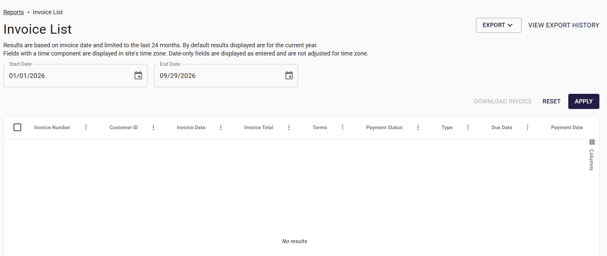
All dates and times in the report are based on your current time zone. A message above the table shows which time zone is being used.
Understand what you see
Each row in the report is one invoice. The report includes these columns:
- Invoice Number: The number printed on the invoice.
- Customer ID: Your organization's account number with Inspirus.
- Invoice Date: The date the invoice was issued.
- Invoice Total: The full amount of the invoice.
- Terms: The payment terms for the invoice.
- Payment Status: Shows Paid or Unpaid.
- Type: The kind of invoice.
- Due Date: The date payment is due.
- Payment Date: The date payment was received.
- Days: How many days the invoice has been open.
- Current, 30 Days, 60 Days, 90+ Days: Show where each unpaid balance falls based on how many days have passed since the invoice was created.
- For example, an invoice created on September 1 moves into the 30 Days column on October 1. Aging is counted from the invoice date, not your payment due date, so you can see at a glance which invoices need attention first.
The report shows up to 200 invoices per page. Use the page controls at the bottom of the table to move between pages.
Filter and sort your invoices
Every column in the report can be sorted and filtered.
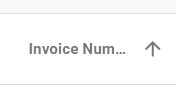
- To sort, click a column heading. Click it again to reverse the order.
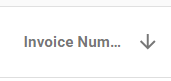
- To filter, open the filter on the column you want and enter or choose what you are looking for. For example:
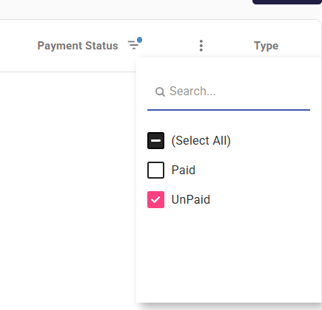
- Filter Payment Status to Unpaid to see only invoices that still need payment.
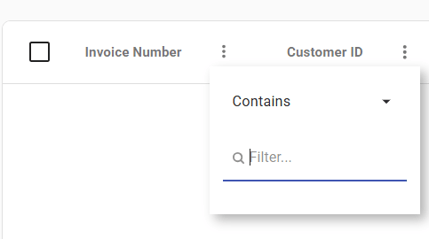
- Filter Invoice Number to find one specific invoice.
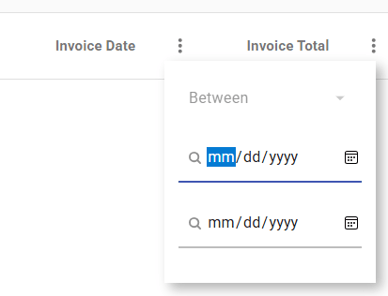
- Set an Invoice Date range to see a certain period.
- Filter Payment Status to Unpaid to see only invoices that still need payment.
- To see invoices from earlier years, change the Invoice Date range. You can view invoices from the past 24 months.
Download invoices
- Check the box next to each invoice you want. You can select as many as you need.
- Click Download Invoice.

Each invoice you selected downloads as its own PDF.
If you see the message "One or more Invoices could not be downloaded, please contact customer support.", your other invoices still download as usual. Send your Customer Success Director a message including the invoice numbers that you are needing, and they will get a copy to you.
Export the report
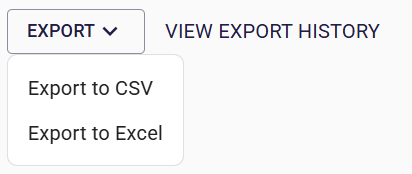
You can save the full invoice list as a CSV or Excel file. The file includes every column shown in the report.
- Click the export option on the report.
- Choose CSV or Excel.
Tips
Tips for keeping track of your invoices:
- Select several invoices at once to download everything you need for a payment run in one step.
- Export the report to Excel when you need to match invoices against your own accounting records.
FAQs
- Why don't I see the billing section on my reports page?
-
Contact your Customer Success Director. They can assist or help troubleshoot.
-
- How far back can I see invoices?
-
-
- You can view invoices from the past 24 months. The report opens on the current year to date, and you can change the Invoice Date range to see earlier invoices.
- Which invoices appear in the report?
- The report shows your paid and unpaid invoices from the past 24 months. Cancelled invoices are not included.
- What do Paid and Unpaid mean?
- An invoice marked Paid has been settled and closed in our billing records.
- An invoice marked Unpaid is still open and has a balance due.
- How current is the information?
- Each time you pull the report, it pulls the latest information from our billing records, so you always see where things stand.
- How can I review invoices from different time periods?
- Filter by Invoice Date to review any period within the past 24 months.
- Filter by Invoice Date to review any period within the past 24 months.
- How do I review invoices greater than 24 months?
- Contact your Customer Success Director.
Questions? Submit a ticket to the Help Desk.