
Table of Contents
Recipient & Message
-
Choose Program - Select the program you're associating the recognition with. If you have one program to choose from, this field will auto-populate the program.
- Send to - In the Recipients field, type the "@" symbol. Then type the names of the people you want to send recognition to. A menu will appear showing your organization's grouping options, such as Business unit, Department, Location, and others.
- Click on a grouping category to view the available groups (for example, click Department to see Finance, Sales, Customer Service, etc.) along with the number of people in each group.
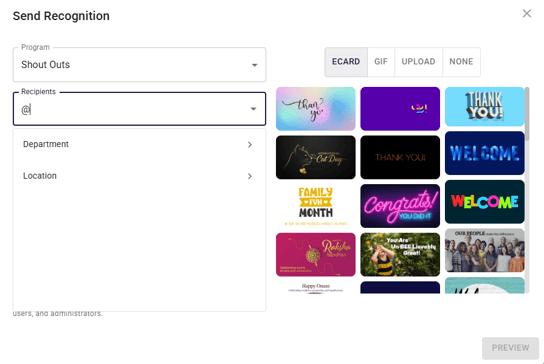
- Click on the specific group you want to recognize.
- A list of all active users in that group will appear. You have two options:
- Click ADD ALL at the top to add every eligible user in the group at once.
- Click ADD next to individual names to add specific team members.
- Selected recipients will appear on the right side with their profile pictures and names.
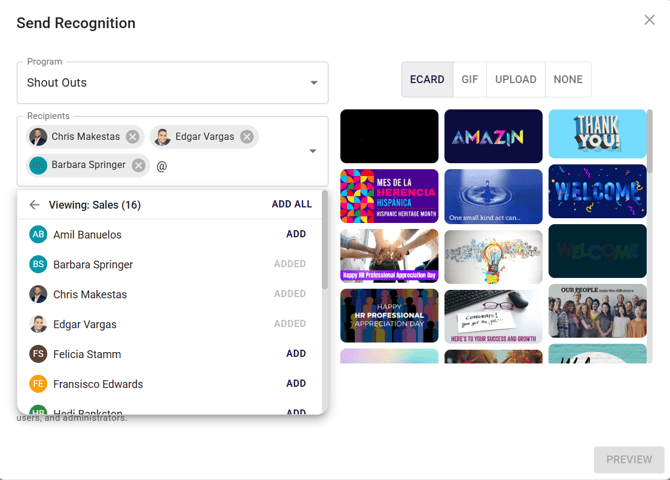
- A list of all active users in that group will appear. You have two options:
- To add recipients:
- Click the back arrow to return to the group list and select another group to add to your send.
- To remove recipients:
- Click the gray X next to any recipient's name to remove them from the send.
- To add recipients from a list of email addresses:
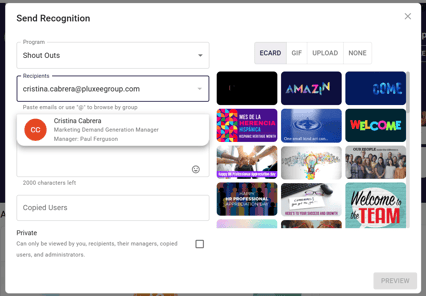
- In the Recipients field, paste your list of email addresses. Separate each address with a comma or place each one on its own line. Your list can include up to 300 addresses.
- Semicolons aren't supported. If your email program separates addresses with semicolons, replace them with commas before pasting.
- Semicolons aren't supported. If your email program separates addresses with semicolons, replace them with commas before pasting.
- Each address that matches an eligible user is added to the Recipients field automatically.
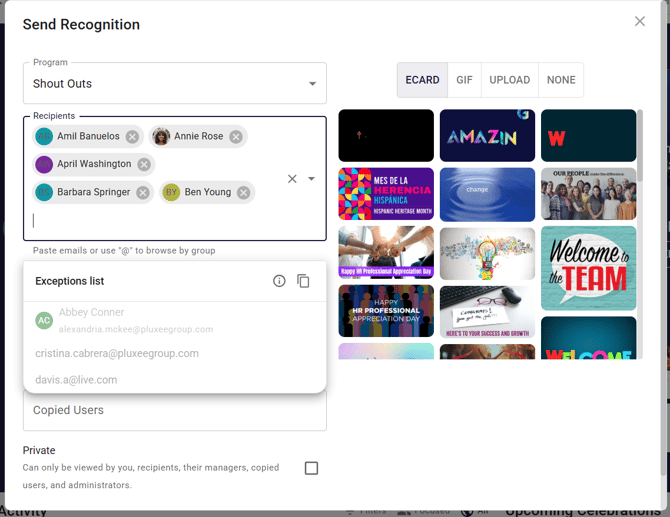
- Any addresses that couldn't be added appear in an Exceptions list below the field. Click the copy icon if you want to paste your list into another application to review and edit it.
- Only addresses that match a user in Connects are added to the recognition.
- If your list has more than 300 addresses, you'll see an alert that the list is too large. Split it into smaller lists and paste again.
- If you see a message that your list couldn't be processed, check that the addresses are separated by commas or line breaks, remove any extra text such as names or job titles, and paste again.
- Only addresses that match a user in Connects are added to the recognition.
- In the Recipients field, paste your list of email addresses. Separate each address with a comma or place each one on its own line. Your list can include up to 300 addresses.
- Click on a grouping category to view the available groups (for example, click Department to see Finance, Sales, Customer Service, etc.) along with the number of people in each group.
- Your message - Add your message, up to 2,000 characters, and emojis
- Choose Reason (only applicable for points programs) - Choose a reason that most aligns with the recognition you are sending
- Add points (only applicable for points programs) - Select the amount of points you want to award your colleague
- Copied - When you copy others, they will get notified they were copied on the recognition but they won’t receive points if any are applied to the recognition.
- Public/Private - Recognition will default to Public and you can change it to Private by clicking the checkbox.
- Public recognition is seen by everyone in your organization.
- Private recognition is only seen by the person who sent it, the recipient(s), their manager(s), those who have been copied, and administrators.
* Public recognition can always be made private after sending, but Private recognition can never be made Public.
- Select an image - Choose between eCards, GIFs, or none
- If you click on the ECARD tab, you will see a selection of options you can scroll through. You can apply the one you want to be added to your recognition by clicking on it.
- If you click on the GIF tab, you can search for options by typing in a keyword or phrase into the “Search GIFs…” box. This will bring up a selection of options you can scroll through. You can apply the one you want to be added to your recognition by clicking on it.
- You can select the None tab if you prefer to send your recognition without an eCard or GIF.
- Once you’ve chosen an eCard, GIF or none, click the Preview button to move to the final step.
- Upload an image or video
- If you click on the Upload tab, you can upload media directly from your device.
- Specifically, if you are using a mobile device, you will have the option to take a picture or record a video.
- Once you've added your own image or video, click the Preview button to move to the final step.
Preview and Send
The preview shows you exactly what your recognition will look like once it’s sent. If you would like to make revisions, click the Back button. When you are ready to send your recognition, click the Send button.
Note that once you send the recognition, you cannot go back and edit it.
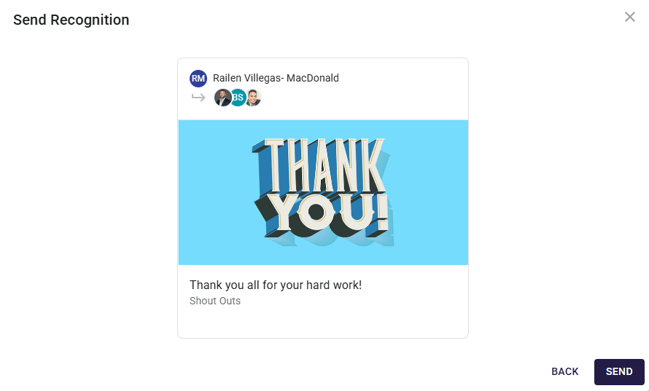
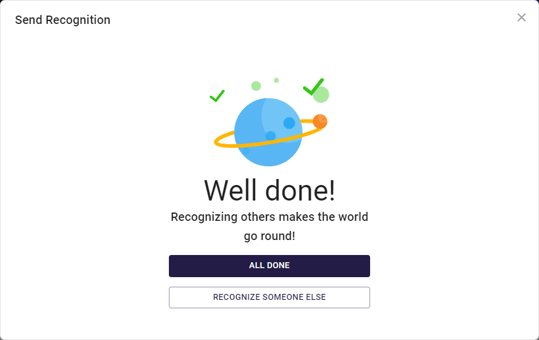
Once you’ve sent your recognition, a modal will pop up telling you it’s complete. You can click on Recognize Someone Else to send another recognition, or you can click on All Done to exit and return to your Home page.
FAQs
- Why don't I see groups when I type "@" in the Recipients field?
-
If you don't see groups after typing "@", your current data set likely doesn't include these fields yet.
Contact your Customer Success Director. They can review your data with you and help fill in the missing fields so your groups appear.
-
-
Can I create my own custom group?
-
No, you can't create custom groups. roups are automatically populated from your user data files.
-
-
What is the recipient limit for group send messages?
-
Group send messages can be sent to a maximum of 300 recipients.
-
Questions? Submit a ticket to the Help Desk.