
What is the “Opening Experience”?
The Opening Experience is a section-based page that is sent to end users for various programs in the system. As an example, Service Anniversaries and Holiday programs both use an opening experience to deliver a gift.
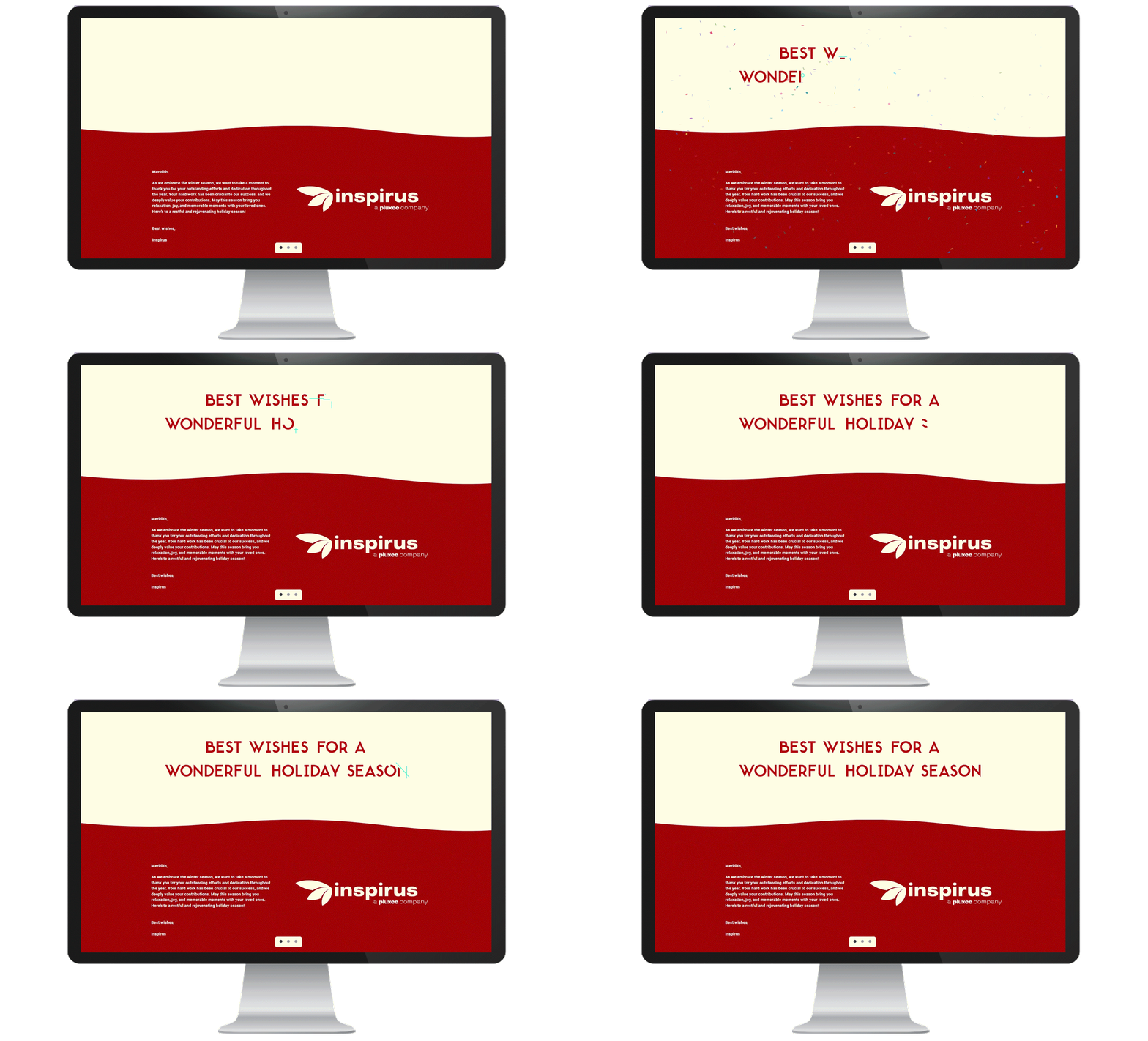
What is the Experience Builder?
The Experience Builder is the tool that enables open experience building. To navigate here as an admin, click on the "Programs" tab in your profile. Then, click on the Program you would like to edit. In the specific program setup, the experience builder can be found in the “Experience tab”.
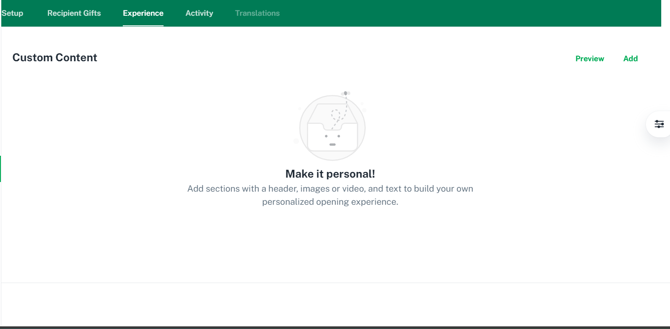
The “Add” button in the top right corner will add a new section. The “Preview” button in the top right corner will preview the entire experience (outside of the claim reward button section).
See the “How to Use” section to learn how to configure these sections.
What Programs does the Experience Builder apply to?
The experience builder applies to:
- Celebrates Experiences
-
Personal Service Anniversaries Programs
-
Personal Birthday Programs
-
Nomination Programs (both for Approved and Acknowledged Nominations)
-
Onboarding Programs
-
Specific Date Recognitions (Holidays, Nurses Week, etc)
How to Use the Experience Builder Guide
The Experience Builder allows you to build sections (as many as you want), with each section having the same configurability options. Each new experience section will start with the box (screenshot) seen below.
There are options for:
-
Header Text
-
Image / Video / GIF Upload
-
Long Form Text Box
-
Background Color
-
Text Color
-
Section Divider
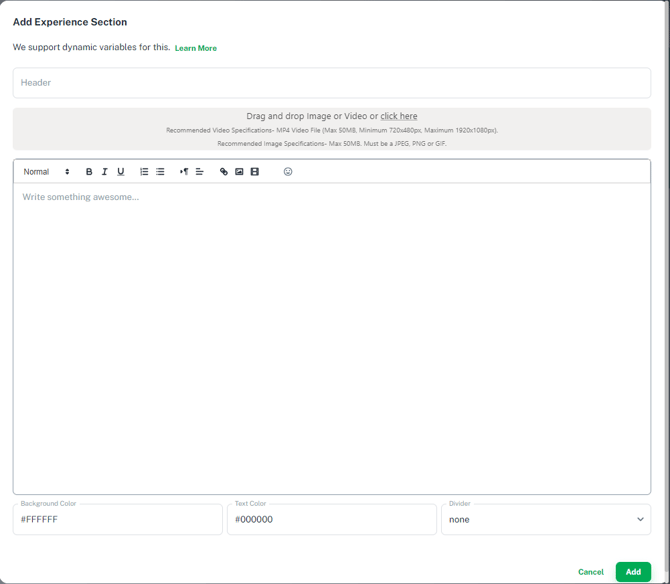
Header Text Options
-
The Header Text always appears centered and at the top of the section.
-
The text size is automatically set based on the device and cannot be changed.
-
Max character length is 175 characters
-
You may edit the color of the text using the “Text Color” option at the bottom of the Experience Section Builder
Add Image / Video / GIF
-
Accepted File Formats: MP4, PNG, JPEG, GIF
-
Maximum File Size: 50MB (including videos)
-
The image size is automatically set based on the device. If you are having trouble with image size, resize the file itself or reach out to the Inspirus team for help.
-
For Videos:
-
Minimum Dimensions: 720 x 490px
-
Maximum Dimensions: 1920 x 1080px
-
Long Form Text Box
-
Fully configurable text
-
Headers and Paragraph Font
-
Bold, Italics, Underline
-
Bullet Points, Numbered List
-
Indentation
-
Right, Left, Center Justification
-
Add Hyperlinks
-
Add Images / Videos*
-
- *Note: This box has a very large character limit (over 15,000 characters). However, if you add an image to this section, this character limit will be reduced. It is generally recommended to not put an image in this section.
Background Color
-
Sets the background color of the section
-
Use a Hex Code
Text Color
-
Sets the color of the text for the entire section
-
Use a Hex Code
-
Recommended to choose a color that contrasts the background color (for readability)
-
Section Divider
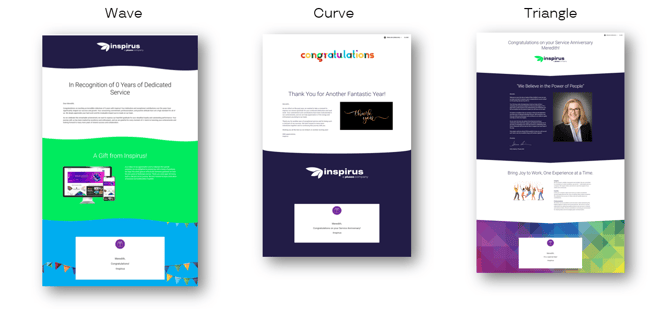
- The section divider shows at the bottom of the section. The section below it will need to have a different background color in order for this functionality to show.
-
Options include:
-
None
-
Wave
-
Curve
-
Triangle
-
Dynamic Variables
The opening experience can be dynamically updated based on the person it is sent to. The following fields are most used:
-
First and Last Name
-
Years of Service
- Business Unit
-
Department
- Manager's First and Last Name
If you have any questions, please reach out to Inspirus support!